
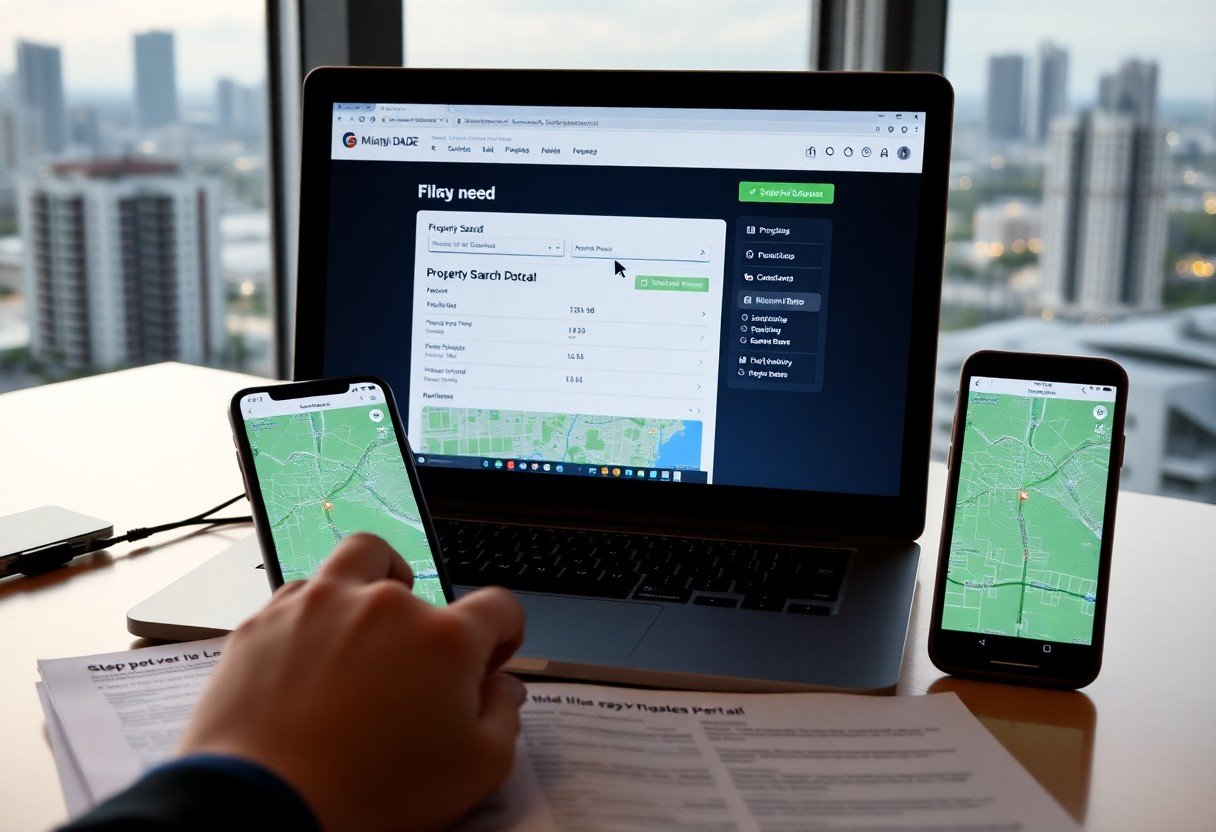
With step-by-step guidance, you can quickly navigate the Miami Dade Property Search Portal to find parcel maps, ownership records, assessed values, and tax histories; use search filters, your parcel ID or address, and map tools to refine results, export reports, and verify legal descriptions so you obtain accurate property data for transactions or due diligence.
Getting Started with the Miami Dade Property Search Portal
When you launch the portal, enter an address, owner name, or folio number to pull up the parcel record immediately. You’ll see a property map alongside tabs for assessed value, sales history, exemptions, and building details like year built and square footage. Use these fields to verify tax information, confirm recent sales, or prepare comparables for listings without creating an account.
Accessing the Portal
Open miamidade.gov and navigate to the Property Appraiser or Property Search section, or search “Miami-Dade Property Search” to find the portal directly. Prefer Chrome, Edge, or Safari for best performance, and allow pop-ups if you plan to export PDFs. You can access most features on mobile, but complex layer toggling and measurement tools work faster on a desktop browser.
Understanding the User Interface
The layout separates a map viewer from a details pane so you can toggle layers (aerial, parcel boundaries, flood zones) while viewing tabs for Details, Sales, Building, and Exemptions. Click any parcel to open its summary card showing owner name, last sale price, assessed value, and exemptions; use the search filters to narrow by address, owner, or use code.
For deeper analysis, use the results table to sort by sale date or assessed value and the map’s measurement tool to capture lot dimensions and area in square feet or acres. For example, when you search an address in Coral Gables, click the parcel pin to view a PDF property report, review the five most recent sales listed, and toggle the zoning layer to confirm land‑use classification before running comps.
Conducting a Property Search
Open the portal and use the top search bar to run quick lookups-address, owner, folio or map selection will return parcel details, assessed value, exemptions, and last sale data. You’ll often get results within seconds; click a parcel on the map to view the full record panel and export data if needed. Use city or ZIP filters to limit results when a search returns large lists.
Basic Search Techniques
You should start with exact-match inputs: paste the full street address (including unit), enter the owner’s full name, or use the folio/parcel ID to jump straight to the record-e.g., try folio 30-0101-000-0010 for a direct hit. Narrow results by selecting city or ZIP, and sort by assessed value or last sale to surface properties that meet your criteria quickly.
-
Address Search
Action Enter full street address with unit Example 123 Main St Unit 2A – returns parcel, owner, assessed value -
Owner Name Lookup
Action Type exact or partial owner name Tip Use quotes for exact matches to reduce false positives -
Folio / Parcel ID
Action Paste the folio/parcel number to open the record Benefit Fastest way to access full deed, tax and sale history
Advanced Filtering Options
Apply multi-field filters to pinpoint targets: set assessed value ranges (for example $100,000-$1,000,000), filter by land-use codes like R-1 or COM, select sale-date windows (last 1-5 years), and include/exclude exemption types. Combining three filters typically narrows results dramatically and helps you focus on investment-grade or owner-occupied properties.
If you’re scouting investments, layer filters such as sale date within 3 years plus year built >2000 and non-homestead exemption to isolate recently traded, newer investor-owned homes. Export filtered results as CSV to run batch valuation models or import into mapping tools to overlay flood zones, transit, and school boundaries for deeper due diligence.
-
Value & Year Built
Filter Assessed value range; year built minimum Use case Find mid-market homes built after 2000 between $200k-$800k -
Land Use & Zoning
Filter Land-use code and zoning designation Use case Locate R-1 parcels for single-family development opportunities -
Exemptions & Ownership
Filter Homestead, veteran, or non-exempt properties; owner type Use case Exclude homestead to focus on investor-owned listings -
Sale History & GIS Overlays
Filter Sale date range; integrate GIS layers (flood zone, transit) Use case Find recently sold properties in low-risk flood zones near transit
Utilizing Map Features
You can use the map’s layer controls to toggle parcels, aerial imagery, zoning, and FEMA flood zones; zoom levels roughly 1-20 let you switch between county-wide and block-level views. Clicking a property pin opens a card showing folio number, assessed value, last sale amount and year, and building square footage. Heatmaps and cluster pins reveal sales density; you can draw a polygon or set a 0.1-5 mile radius to focus searches.
Viewing Properties on the Map
Pins are color-coded by status (active, pending, sold) and cluster at low zoom to reduce clutter; when you click a pin the property card displays address, folio ID, assessed value, land use code, lot size and last sale date. You can use the draw tool to create a custom polygon or rectangle for targeted searches, then export matching records as CSV for offline analysis in Excel or import into GIS software.
Customizing Your Map Experience
You can switch basemaps between street and satellite, enable parcel labels and cadastral outlines, and set filters for assessed value ranges (for example $100,000-$1,000,000), year built, or property type. Save map views for recurring searches and copy the shareable URL to send specific results to clients or team members.
When you open the Layers menu, toggle FEMA flood zones, zoning districts, and recent sales (last 12 months); enabling the “Sales heatmap” highlights high-activity areas like Little Havana or Wynwood. To narrow results, combine a $250k-$500k price filter with a 1-mile radius around a folio of interest to surface potential investment parcels, then export KML or CSV for client reports or further spatial analysis.
Analyzing Property Information
When you analyze a record, prioritize fields that drive valuation and risk: parcel ID, assessed value, lot and building square footage, zoning, year built, flood zone, and active exemptions. Use the portal to pull comparables within 0.5 miles and 12 months to benchmark prices. For example, a 2,000 sq ft lot zoned RU-3 with an assessed value of $350,000 and no homestead exemption requires different tax and market assumptions than an exempt parcel nearby.
Reviewing Property Details
You should inspect the parcel ID, legal description, lot size (sq ft), building square footage, year built, and zoning code. Check assessed value and exemptions – for instance, a 1,800 sq ft home assessed at $275,000 with homestead differs from a vacant lot by tax liability and financing options. Also verify flood zone, recent permits, and current use to spot unpermitted work or nonconforming structures that affect resale and insurance.
Understanding Property History
You need to parse sales, deed history, mortgages, liens, and code violations: note dates and prices (e.g., a 2015 sale at $220,000 vs. a 2020 sale at $420,000 shows steep appreciation). Track tax lien filings and foreclosure history, and consult permit timelines to confirm renovations. An unresolved lien or repeated violations can delay closing or reduce offers.
Compare sale-to-sale appreciation and calculate annualized returns using (price2/price1)^(1/years)-1; a rise from $200,000 to $300,000 over five years equals about 8.4% annually. Cross-check permit numbers and inspector statuses, review grantor/grantee names for frequent flips, and flag three or more owners in seven years as a signal to order a deeper title and condition review.
Saving and Sharing Your Searches
When you save searches, name them clearly (for example, “Downtown condos <$500k”) and enable alerts to receive daily or weekly email updates when matching parcels change. Save filter sets for parcel ID, owner name, zoning code and assessed-value ranges like $100,000-$1,000,000 so your results stay focused and you avoid rebuilding complex queries each time.
Creating an Account
Register via the portal’s Sign Up link by entering your full name, a valid email and a password (minimum 8 characters). Verify through the confirmation link sent to your inbox to unlock saved-search and sharing features, then set profile preferences and enable optional two-factor authentication so your saved searches and alerts sync securely across devices.
How to Save and Share Listings
Open a search, click the Save icon, assign a folder or tag, and add a short note to highlight why a property matters. To share, select listings, click Share, then choose Email, Copy Link or Export PDF; you can send single-item links or multi-listing digests and set delivery frequency to daily or weekly.
Organize with clear folder names like “Q1 2026 Investor Picks” so you can locate priority searches among dozens; use snapshots to freeze results with a timestamp for reports, or share live links to let recipients see updates in real time. Apply tags and filter summaries to make shared reports immediately actionable for agents, investors or colleagues.
Troubleshooting Common Issues
When the portal misbehaves, you should follow a short checklist: update to the latest Chrome or Firefox, clear your browser cache and cookies, disable extensions like ad‑blockers, and try an incognito window. If that fails, capture a screenshot, note the parcel or folio number, and record the exact error message before contacting support so they can reproduce the issue faster.
Login Problems
If you can’t sign in, use the “Forgot Password” link to reset via the email tied to your account and check spam or quarantine folders for the reset message. You should confirm CAPTCHA completion and that your agency SSO (if used) isn’t expired; multiple failed attempts may temporarily lock access, so allow a short wait before retrying and collect timestamps and error text for support.
Navigational Challenges
If map pins, layers, or search filters behave oddly, toggle the layer controls (parcels, aerial, zoning, FEMA) and adjust zoom-the portal uses zoom levels roughly 1-20-to reveal hidden parcels or labels. You should also switch search modes (address, owner, folio, map selection) or try partial addresses and nearby cross streets when a direct lookup returns no results.
For deeper fixes, reset filters and the map extent, then enable only the parcels layer and set zoom between 12-16 to inspect boundaries; use the Identify tool to click a parcel and pull the folio, assessed value, and owner fields. If exported layers or printouts misalign, confirm your browser DPI settings and try exporting as CSV before shapefile to verify attribute data integrity.
Conclusion
From above, you can streamline searches on the Miami-Dade Property Search Portal by setting precise filters, using the interactive map, reviewing property histories and tax records, and saving or exporting relevant lists. Follow consistent naming and documentation practices, verify parcels with official records, and leverage alerts to keep your property tracking efficient and accurate.